
Key Takeaways
The Steam Deck’s internal SSD greatly influences performance, load times, and storage capacity. Upgrading your SSD can expand storage and improve speed, but compatibility is crucial. Choosing the right SSD depends on factors like size, speed, and gaming needs.
The Steam Deck has quickly become a popular handheld gaming console for those who want to enjoy PC games on the go.
One of the key features of the Steam Deck is its internal SSD, which significantly impacts gaming performance, load times, and overall experience.
What is the Internal SSD in the Steam Deck?
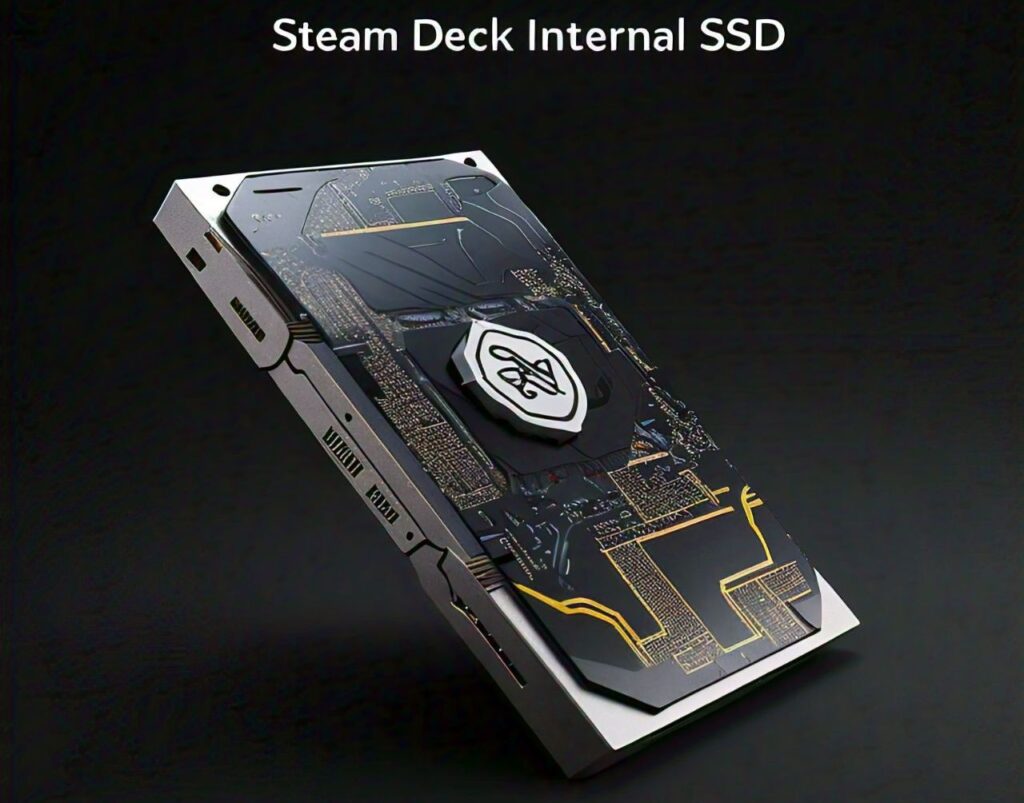
The Steam Deck comes with an internal SSD that serves as its primary storage solution.
The SSD handles everything from game storage to system files, directly influencing the console’s speed and efficiency.
There are three main storage variants of the Steam Deck:
- 64GB eMMC – Entry-level model with slower speeds.
- 256GB NVMe SSD – Mid-tier model with faster read/write speeds.
- 512GB NVMe SSD – High-end model offering the fastest performance and most storage.
The internal SSD in the Steam Deck is an NVMe (Non-Volatile Memory Express) type, known for its speed and low latency, making it ideal for gaming.
The NVMe SSDs are connected via the M.2 2230 interface, a compact form factor that fits the Steam Deck’s design.
Why the SSD Matters in the Steam Deck?
The internal SSD is critical because it directly affects the Steam Deck’s performance.
A faster SSD reduces load times, enables quicker booting, and allows smoother gameplay, especially for large AAA titles.
The speed of the SSD is measured in read and write speeds (MB/s), which determine how quickly data is transferred.
Can You Upgrade the Steam Deck’s Internal SSD?
Yes, the Steam Deck’s internal SSD can be upgraded.
However, this process requires technical knowledge and comes with risks. Valve, the maker of the Steam Deck, has stated that the SSD is not intended to be user-replaceable.
Nevertheless, many users have successfully upgraded their SSDs, boosting storage and performance.
Things to Consider Before Upgrading:
- Upgrading may void the warranty.
- You must use a compatible M.2 2230 SSD.
- Proper disassembly and reassembly are required.
How to Choose the Right Internal SSD for Steam Deck?
Key Factors to Consider When Choosing an SSD
When selecting a new SSD for your Steam Deck, it’s essential to consider several factors to ensure compatibility and optimal performance.
- Form Factor (M.2 2230):
- The Steam Deck uses an M.2 2230 SSD. This is a smaller and less common form factor compared to M.2 2280.
- Make sure the SSD you choose is M.2 2230; otherwise, it won’t fit in the Steam Deck.
- Capacity:
- Consider your storage needs. If you play large games, a 512GB or 1TB SSD may be more suitable.
- Keep in mind that some space will be used by system files, reducing the total available storage.
- Speed:
- Look for SSDs with high read and write speeds, ideally above 2,000 MB/s.
- Faster speeds translate to quicker load times and better performance, especially for demanding games.
- Durability and Reliability:
- Gaming involves frequent read and write cycles, so choose an SSD known for reliability.
- Opt for SSDs with good endurance ratings (measured in TBW – Terabytes Written).
Compatibility of SSDs with the Steam Deck
Compatibility is a critical factor when choosing an internal SSD for your Steam Deck.
Not all SSDs are compatible due to size restrictions and interface requirements.
M.2 2230 Interface:
The Steam Deck’s internal SSD slot only supports M.2 2230 drives. These are smaller than the more common M.2 2280 drives, so make sure to choose an SSD that fits.
PCIe Gen 3 or Gen 4 Support:
The Steam Deck supports both PCIe Gen 3 and Gen 4 NVMe SSDs. While Gen 4 SSDs offer faster speeds, Gen 3 SSDs are often more affordable and still provide excellent performance.
Best Internal SSDs for Steam Deck
Choosing the best internal SSD for your Steam Deck can enhance your gaming experience.
1. WD SN530 M.2 2230 NVMe SSD
- Capacity Options: 256GB, 512GB, 1TB
- Speed: Up to 2,400 MB/s read speed
- Pros: Reliable, good balance of speed and price
- Cons: Limited availability in some regions
The WD SN530 is a popular choice for Steam Deck users due to its excellent performance and compatibility.
It offers a good balance of speed and storage capacity, making it a versatile option for gamers.
2. Samsung PM991a M.2 2230 SSD
- Capacity Options: 512GB, 1TB
- Speed: Up to 3,100 MB/s read speed
- Pros: High read speed, durable
- Cons: Slightly higher price point
The Samsung PM991a is known for its fast read speeds, which help reduce game load times significantly.
It’s a solid choice if you want a performance boost for your Steam Deck.
3. Kioxia BG4 M.2 2230 NVMe SSD
- Capacity Options: 256GB, 512GB, 1TB
- Speed: Up to 2,300 MB/s read speed
- Pros: Energy-efficient, reliable
- Cons: Slower write speeds
The Kioxia BG4 offers great value for those looking to upgrade their Steam Deck’s storage.
It is an energy-efficient SSD, making it an ideal choice for users concerned about battery life.
FAQs
1. Can I upgrade the internal SSD of the Steam Deck myself?
Yes, you can upgrade the internal SSD, but it requires technical skills and may void your warranty. The Steam Deck uses an M.2 2230 NVMe SSD, so be sure to choose a compatible drive.
2. Is a higher-capacity SSD worth it for the Steam Deck?
A higher-capacity SSD can be beneficial if you play a lot of large games or want to store extensive game libraries. It also helps prevent slowdowns as the SSD fills up.
3. What happens if I use an incompatible SSD?
Using an incompatible SSD can lead to issues such as the drive not fitting properly or the Steam Deck failing to recognize the SSD. Always check compatibility, especially the form factor (M.2 2230) and interface (PCIe Gen 3 or Gen 4).
4. Will upgrading the SSD affect the Steam Deck’s battery life?
It can. Some SSDs consume more power, potentially reducing battery life. Choosing an energy-efficient SSD can help mitigate this effect.
5. Do I need to reinstall the operating system after upgrading the SSD?
Yes, if you replace the internal SSD, you will need to reinstall SteamOS or your preferred operating system. You can do this using a recovery USB drive.
Conclusion
Upgrading or choosing the right internal SSD for your Steam Deck can significantly enhance your gaming experience, offering faster load times and more storage space for your game library.
The key is to select a compatible M.2 2230 NVMe SSD with the right capacity and speed to meet your needs.
While the process may seem daunting, the benefits of improved performance and storage flexibility make it a worthwhile investment for many gamers.
Whether you opt for a WD SN530, Samsung PM991a, or Kioxia BG4, each SSD has its strengths, catering to different preferences and budgets.
Leave a Reply