
Key Takeaways
Understanding your SSD type is crucial for compatibility with upgrades and troubleshooting. There are several methods to identify SSD types, including system settings, physical inspections, and third-party software. Both laptops and desktops have different approaches for SSD identification.
Solid State Drives (SSDs) have become the go-to storage solution for many users due to their speed, reliability, and efficiency.
This article will guide you through multiple methods to determine what type of SSD you have installed in your system.
How to Find Out What Type of SSD You Have ? Checking Through System Settings
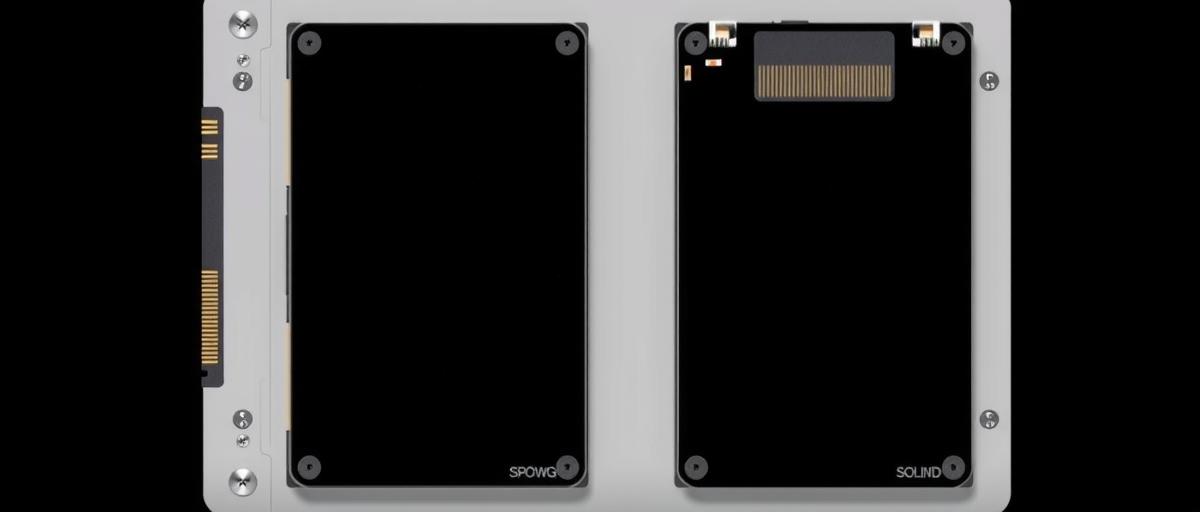
One of the easiest ways to find out the type of SSD you have is by checking your system settings.
This method is straightforward and requires no additional tools.
For Windows Users
- Open the Device Manager: Right-click on the Start button and select Device Manager from the menu.
- Expand Disk Drives: In the Device Manager window, expand the Disk Drives section. Here, you will see a list of all storage devices connected to your system.
- Identify Your SSD: Look for the drive labeled with terms like “SSD,” “Solid State Drive,” or a specific brand name (e.g., Samsung, Crucial). The model number usually includes the type (e.g., NVMe or SATA).
For Mac Users
- Open About This Mac: Click on the Apple logo in the top left corner and select About This Mac.
- System Report: Click on System Report and then select Storage from the sidebar.
- SSD Information: Here, you can see details about your SSD, including its type and connection interface.
Physical Inspection Methods
If you’re comfortable opening up your device, you can physically inspect the SSD.
This method is beneficial, especially when dealing with older systems or when you want to verify specifications.
Inspecting a Desktop SSD
- Power Down and Unplug: Ensure your desktop is completely powered down and unplugged from the electrical outlet.
- Open the Case: Remove the side panel of your desktop case.
- Locate the SSD: SSDs can be found mounted in 2.5-inch drive bays or M.2 slots on the motherboard.
- Check the Label: Look for a label on the SSD itself. It should display the type (SATA, NVMe) and the model number.
Inspecting a Laptop SSD
- Power Down and Unplug: Shut down your laptop and unplug it from the power source.
- Remove the Back Cover: Most laptops have a removable back cover; some may require unscrewing.
- Locate the SSD: SSDs in laptops are typically found in 2.5-inch slots or as M.2 drives.
- Check the Label: Similar to desktops, the label on the SSD will provide information about its type and specifications.
SSD Specifications Guide
Understanding the specifications can help you identify your SSD type effectively.
Here’s a brief overview of the main types of SSDs:
SATA SSDs
- Form Factor: 2.5-inch drives.
- Connection Interface: Uses SATA III, which has a maximum data transfer rate of 6 Gbps.
- Use Case: Suitable for older systems and general use where high speed is not critical.
NVMe SSDs
- Form Factor: Usually M.2 or U.2 drives.
- Connection Interface: Connects via PCIe, which allows for much faster data transfer rates (up to 32 Gbps with PCIe 3.0).
- Use Case: Ideal for high-performance tasks like gaming, video editing, and 3D rendering.
M.2 SSDs
- Form Factor: Small and slim, fits directly onto the motherboard.
- Connection Interface: This can be SATA or NVMe.
- Use Case: Common in modern laptops and desktops for saving space and improving airflow.
Tools and Software for SSD Identification
If you’re looking for a more detailed analysis or are unsure from the system settings, various software tools can help identify the SSD type and provide further information about its health and performance.
CrystalDiskInfo (Windows)
- A free tool that provides comprehensive information about your SSD, including the interface type (SATA or NVMe), health status, and firmware version.
HWMonitor (Windows)
- Displays a range of hardware statistics, including details about connected storage devices, which can help you determine the type of SSD.
DriveDx (Mac)
- This tool offers detailed SSD diagnostics, including the type, health, and temperature. It is particularly useful for Mac users.
Linux Command Line
- For users comfortable with the command line, you can use commands like lsblk and lspci to list block devices and PCI devices, respectively. This can help identify SSDs and their interfaces.
Laptop vs Desktop SSD Identification
Identifying SSDs in laptops versus desktops can differ slightly due to physical access and the design of the systems.
Laptop SSD Identification
- Limited Space: Many laptops have compact designs, making it challenging to access the SSD without specialized tools.
- M.2 Drives: Most modern laptops utilize M.2 SSDs, which may require specific screws or tools to remove.
Desktop SSD Identification
- Easier Access: Desktops typically allow for easier access to components, making it simpler to inspect and identify SSD types.
- Variety of Options: Desktops may have multiple SSD types installed, including 2.5-inch SATA and M.2 NVMe drives.
FAQs
Q1: Can I upgrade my SSD?
Yes, you can upgrade your SSD, but ensure compatibility with your system’s specifications. Check if your system supports the type of SSD you want to install.
Q2: Is there a significant difference between SATA and NVMe SSDs?
Yes, NVMe SSDs are significantly faster than SATA SSDs due to their connection interface, which utilizes PCIe lanes for data transfer.
Q3: How can I check SSD health?
You can use software tools like CrystalDiskInfo or DriveDx to monitor the health and status of your SSD.
Q4: What if my SSD is not recognized in Windows?
If your SSD is not recognized, check the physical connections, ensure it’s properly seated in its slot, or try connecting it to a different system to determine if the drive itself is faulty.
Q5: Are all SSDs compatible with all systems?
No, SSD compatibility depends on factors like the connection interface (SATA vs. NVMe) and physical size (2.5 inches vs. M.2). Always check your system’s specifications before purchasing.
Conclusion
Identifying the type of SSD you have is crucial for various reasons, including performance upgrades and troubleshooting.
Whether you choose to check through system settings, perform a physical inspection, or use software tools, each method offers a reliable way to gather information about your SSD.
Understanding the specifications and differences between SATA and NVMe drives will also guide your future decisions on upgrades and replacements.
With this knowledge, you’ll be better equipped to manage your storage solutions effectively.
Leave a Reply