
Key Takeaways
Not all laptops have removable SSDs; many modern models use soldered storage. Checking your laptop model, manufacturer’s manual, or online guides can help determine if the SSD is removable. Removing an SSD can risk voiding your warranty or damaging components. After removal, transfer your data or repurpose the SSD in an external enclosure.
Upgrading or replacing an SSD (Solid-State Drive) is a common desire among laptop owners looking for better performance or more storage. But can you remove the SSD of any laptop? This article explores the answer to the question can I remove SSD from all laptops, the potential risks, and what to do after removing it?
Can All Laptops Have Removable SSDs?
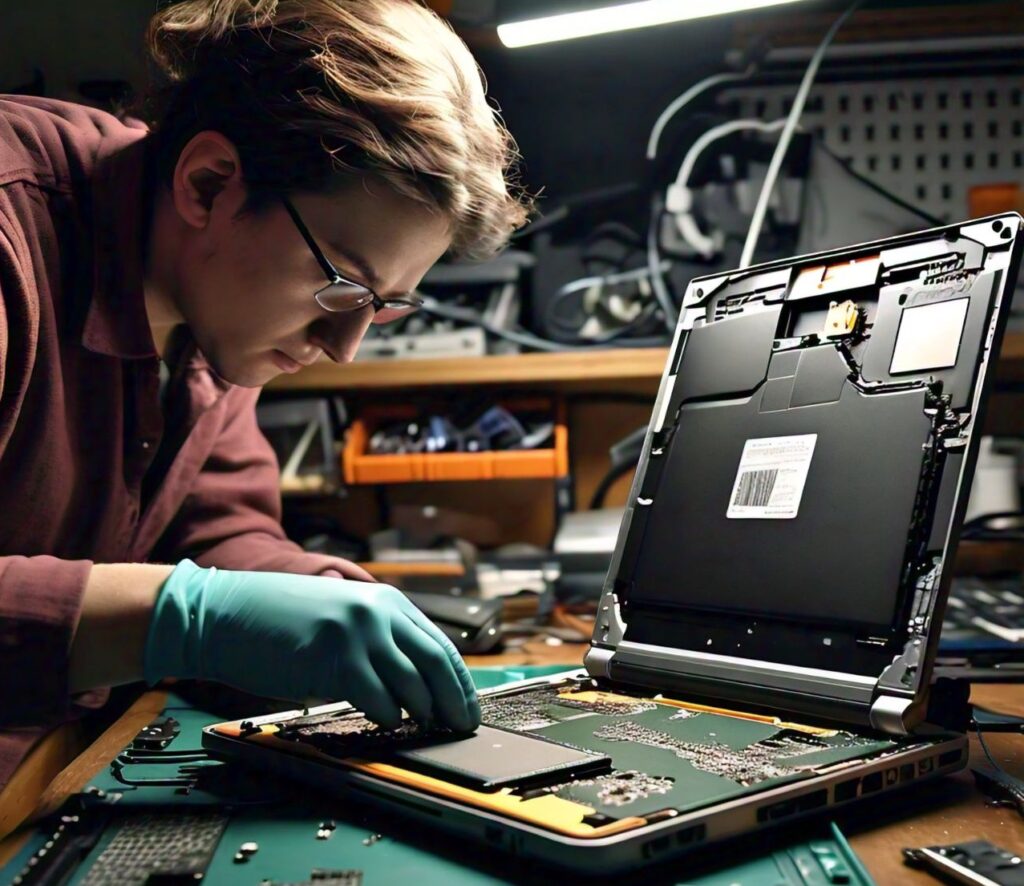
The ability to remove the SSD from a laptop largely depends on the model, design, and manufacturer. Some laptops, especially older or business-class models, feature removable SSDs.
However, many newer, slim, or ultra-portable laptops now feature non-removable storage, with SSDs soldered directly onto the motherboard.
To check whether your laptop is compatible with a removable SSD, refer to this guide on how to check if your SSD is compatible with your laptop.
Why Do Some Laptops Have Non-Removable SSDs?
In recent years, laptop manufacturers have shifted towards making their devices slimmer, lighter, and more compact. This design change often requires components like RAM and SSDs to be soldered onto the motherboard, leaving no option for users to remove or replace them easily.
Some advantages of this design choice include:
- Improved Performance: Soldered SSDs can sometimes deliver faster performance since they are more tightly integrated with the system.
- Compact Design: With fewer removable parts, laptops can be made thinner and lighter, appealing to consumers who value portability.
- Cost-Effectiveness for Manufacturers: By soldering components, manufacturers reduce assembly costs and streamline production.
However, this approach has significant drawbacks for users who want to upgrade or repair their machines. A non-removable SSD limits the lifespan and upgradability of the laptop.
Laptops with Removable SSDs
Many laptops, particularly gaming, professional, and business models, offer the ability to remove and upgrade the SSD. Brands like Dell, HP, Lenovo, and ASUS often provide serviceable designs, where the back panel of the laptop can be opened, giving users access to the SSD.
Laptops with removable SSDs offer several advantages:
- Upgradability: Users can replace their SSD with a larger or faster one.
- Repairability: If the SSD fails, it can be easily replaced without the need for professional assistance.
- Cost Savings: Upgrading an SSD can extend the life of a laptop, preventing the need to buy a new device.
How to Determine if Your Laptop’s SSD Is Removable?
Determining whether your laptop has a removable SSD is crucial before attempting to open it up. Here’s how you can find out:
1. Check the Laptop’s Specifications
The first step is to check the manufacturer’s specifications for your laptop model. These are often available on the manufacturer’s website or in the user manual that came with the laptop.
Look for information on the storage type, and see if the SSD is listed as soldered or removable. Some models might also indicate if the laptop has an M.2 or SATA SSD slot, which would typically be removable.
2. Look for Service Manuals
Many laptop manufacturers offer detailed service manuals that explain how to disassemble the laptop for repairs or upgrades.
These manuals are a great resource for discovering whether the SSD is removable and the steps to access it. Some common terms to look for in service manuals include:
- M.2 Slot: If your laptop has an M.2 slot, it means the SSD is removable.
- Soldered SSD: Indicates the SSD is fixed to the motherboard and cannot be removed.
3. Online Guides and Forums
If you’re unsure, online guides and forums are invaluable resources.
4. Physical Inspection
For more tech-savvy users, physically inspecting the laptop may be an option. By unscrewing the back panel, you can check whether the SSD is in a removable slot. Be cautious, though, as opening a laptop can void its warranty, and improper handling can damage sensitive components.
Potential Risks of Removing an SSD from a Laptop
Before proceeding with removing your laptop’s SSD, consider the potential risks involved. While upgrading or replacing an SSD can boost performance or extend your laptop’s life, it’s not without its challenges.
1. Voiding the Warranty
Opening up your laptop and removing the SSD could void the manufacturer’s warranty. Many laptop brands have tamper-evident seals on the screws or casing, and breaking these seals could forfeit your warranty. Always check your warranty policy before attempting any modifications.
2. Damage to Internal Components
Laptop components are sensitive, and if not handled correctly, you could accidentally damage the motherboard or other internal parts. Removing the SSD involves unscrewing and sometimes unplugging parts, which can lead to issues if done improperly.
3. Data Loss
Removing the SSD from a laptop without backing up your data can result in significant data loss.
If your goal is to upgrade to a larger SSD, ensure that your data is fully backed up before starting the process. Using an external drive or cloud backup is recommended.
4. Compatibility Issues
Not all SSDs are compatible with all laptops. If you plan to replace your SSD with a different model, ensure that it matches your laptop’s specifications. For example, some laptops only support SATA SSDs, while others may require an NVMe SSD.
What to Do After Removing Your Laptop’s SSD?
Once you’ve successfully removed your laptop’s SSD, there are a few key steps you should follow to ensure a smooth transition, whether you’re upgrading, replacing, or repurposing the drive.
1. Backup and Transfer Your Data
If you plan to replace the SSD with a larger one, you’ll need to transfer your data. Use an external SSD enclosure to connect the old SSD to your laptop and transfer files to the new drive.
Alternatively, clone the entire drive using software like Macrium Reflect or Clonezilla to make an exact copy of your old SSD.
2. Repurpose the Old SSD
An old SSD can still serve many purposes. Here are a few ideas for repurposing your removed SSD:
- External Storage: Place the SSD in an external enclosure and use it as portable storage for backups or media.
- Secondary Drive: If your new laptop has multiple SSD slots, you can install the old SSD as secondary storage.
- Use in Another Device: You can also use the old SSD in a desktop or another laptop if it’s compatible.
3. Install the New SSD
If you’re upgrading to a new SSD, ensure it’s properly installed before turning your laptop back on. Carefully insert it into the SSD slot and secure it with screws if necessary.
Once installed, you may need to format the new SSD and install an operating system if it’s a fresh drive.
4. Check for BIOS Updates
After installing a new SSD, it’s a good idea to check for BIOS updates. Some laptops require a BIOS update to fully support newer SSDs, particularly NVMe drives.
Check the manufacturer’s website for any available updates and follow their instructions.
Conclusion
In conclusion, whether you can remove the SSD of all laptops largely depends on the laptop’s design. Many modern laptops come with removable SSDs, making upgrades or data recovery easier.
However, some laptops, especially ultrabooks or models with soldered components, may have non-removable SSDs. It’s essential to check your laptop’s specifications or user manual to confirm if the SSD can be removed. I
f you’re unsure, consulting a professional technician can help avoid any potential damage.
Leave a Reply